Open Surfd for an independent Source-style surfing project. The CS Surf label in the Radiant Optimizer list points to this project. Our desktop check on 11 October 2026 loaded Boreas and reached its run setup. Mouse capture was unavailable in that automated session, so successful surfing was not verified. The help below separates project instructions from our own observations.
Surfd and the CS Surf link in the list
The project focuses on moving along ramps and completing courses. It is not the complete Counter-Strike: Source, CS:GO or CS2 game. A familiar movement style does not make their maps, controls or records interchangeable. Start from the actual Surfd menu and its instructions. You do not need the Radiant Optimizer Windows software to access that website.
The project reference discusses its independent movement implementation and remaining fidelity limits. That documentation is useful context; it is not a promise of identical behavior across all native servers. For a first session, use the project’s own settings and course information rather than copying a competitive setup from a different game.
Choose a map
In our recorded session, the Solo selection let us choose Boreas while its resources were loading. Wait for readiness, then use the join control for that course. We observed the map name, course information and a guest run at zero time. A guest could reach this setup without creating an account; the site showed a separate sign-in option for saved ranked times. We did not test account creation or cloud records.
Choose one course for your first check. Watch whether the visible state is a map menu, a loading indicator or an active run. Moving between several courses while downloads are in progress can obscure which one failed. Keep the chosen name with any bug report. Do not carry a completed load at Boreas into a claim that every listed course has been tested.
Loading Boreas and making a first input check
Our check confirmed that the course could render and the run setup could appear. The project’s current page describes green start and gold finish markers. A useful first practice goal is identifying the start area, reading the on-screen controls and checking whether a deliberate play click captures the pointer. Those steps come before trying to beat a leaderboard time.
If the page remains in a loading state, record its last visible message. If the map is visible but the mouse still behaves like a normal webpage pointer, the problem is at the input step rather than necessarily at the download step. Try the project’s play control in the active window after loading. Keep browser protections enabled, and stop if an error remains instead of masking it with repeated tabs.
Keyboard, mouse and pointer lock
| Input | Shown in the project instructions on 12 October 2026 |
|---|---|
W / A / S / D | Move and strafe. |
Space / wheel down | Jump. |
Shift | Duck. |
Mouse | Look and steer. |
R | Restart. |
Esc | Menu. |
The project instructs surfers to release W on a ramp and use the strafe key toward its face, with gentle mouse turns. Treat this as the author’s guidance, not a successful run we completed. Check current bindings in Settings if your controls differ; changing several settings at once makes it harder to determine which input solved the problem.
Pointer lock requires a deliberate click. Escape can return control to the menu. Our automated session did not obtain valid mouse capture, so it cannot establish the feel of steering, a completed course or competitive performance. A real mouse test in a normal desktop window remains the useful next check if you need those answers.
What our check confirms
The recorded observation confirms menu navigation, Boreas loading and a guest run setup. It does not confirm successful surfing, all maps, online play, saved rankings or touch controls. The current project page specifies desktop keyboard and mouse. A tablet displaying the menu is not the same as verified touch gameplay. Re-check the project’s own instructions after an update.
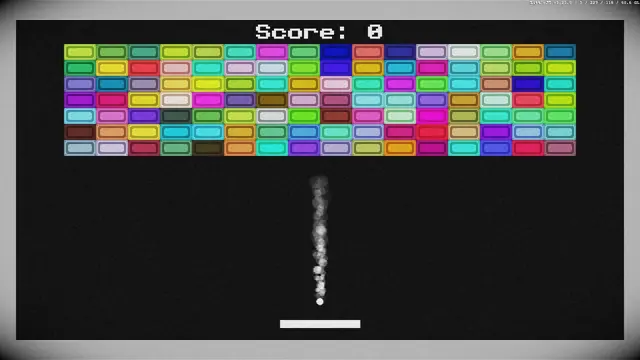
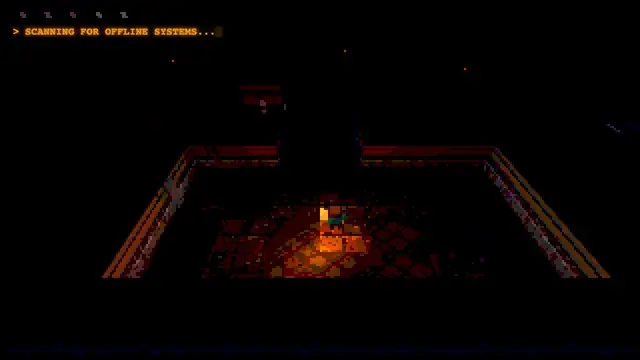
Read Surfd’s terms for its conditions. This guide links to the project and does not embed it or redistribute its assets. For a different in-site keyboard challenge, try Underrun; for a timing-focused arcade round, try Breakout. Return to the Radiant browser-project list to compare other launch requirements.